Start a new job
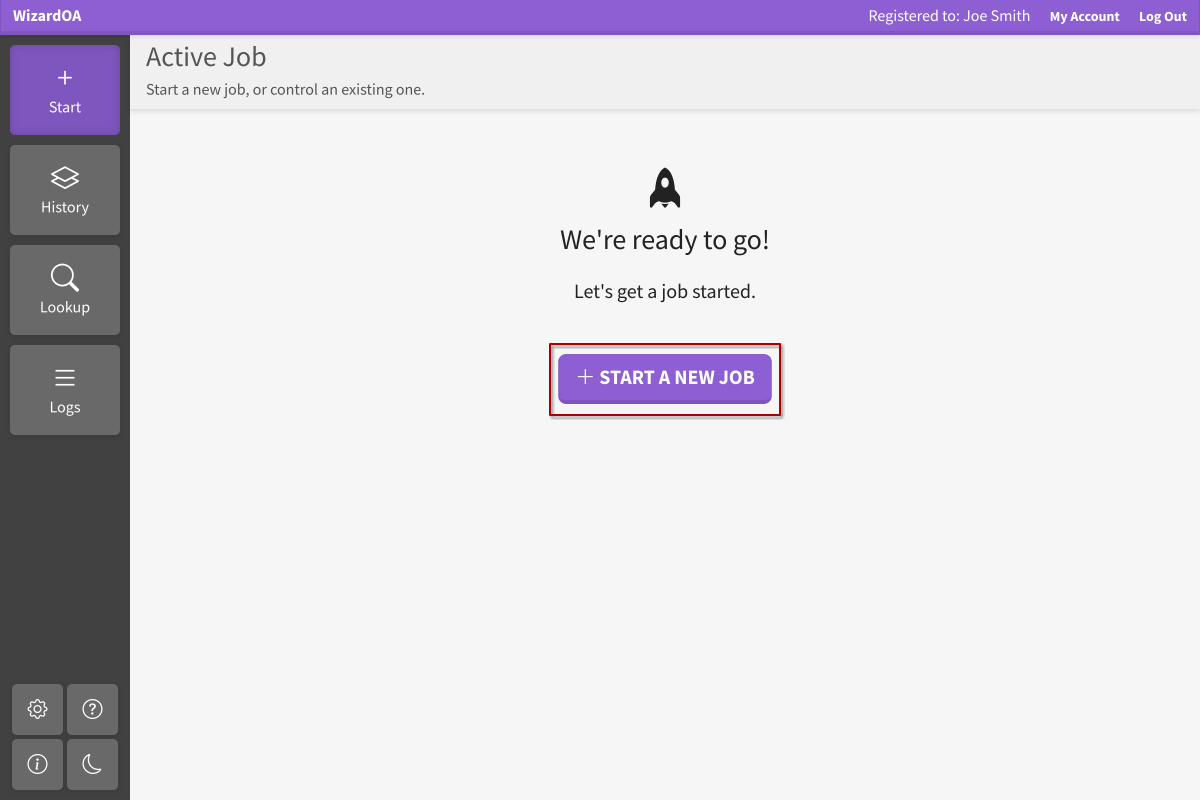
To start a new job, navigate to the Start pane and click Start a New Job.
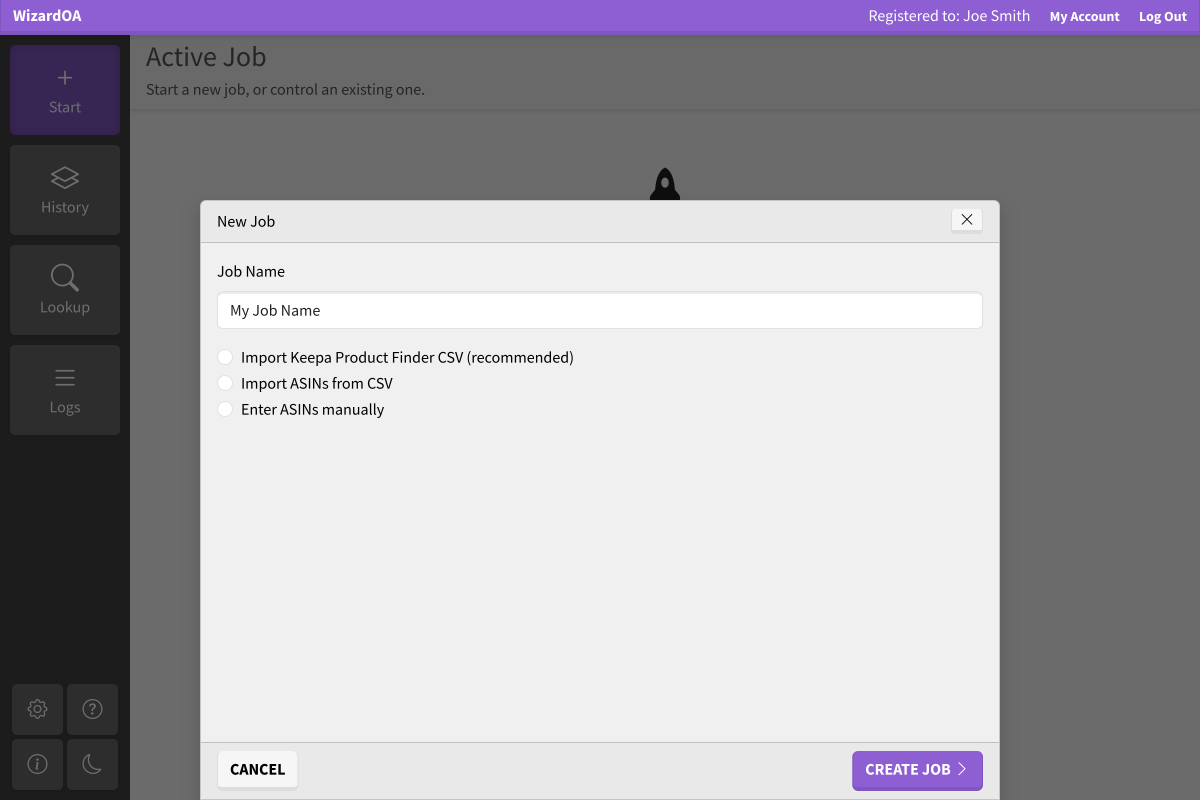
The new job dialog will appear. Enter a job name and select whether you want to import a Keepa Product Finder CSV or import/enter the ASINs directly.
-
Import Keepa Product Finder CSV
This allows you to import a Keepa Product Finder CSV file. This is the recommended method, as WizardOA will not need to query the Keepa API for listing information. Your jobs will run faster, and there is no danger of exhausting your supply of Keepa tokens.
-
Import ASINs from CSV
This allows you to import ASINs from a CSV file. The Keepa API will be queried for each ASIN to retrieve listing information.
-
Enter ASINs manually
This allows you to enter a list of ASINs by hand. The Keepa API will be queried for each ASIN to retrieve listing information.
Create job
After you have imported or entered your job data, click Create Job. The new job dialog will disappear, and you can start your job by clicking Run Job.
Control your running job
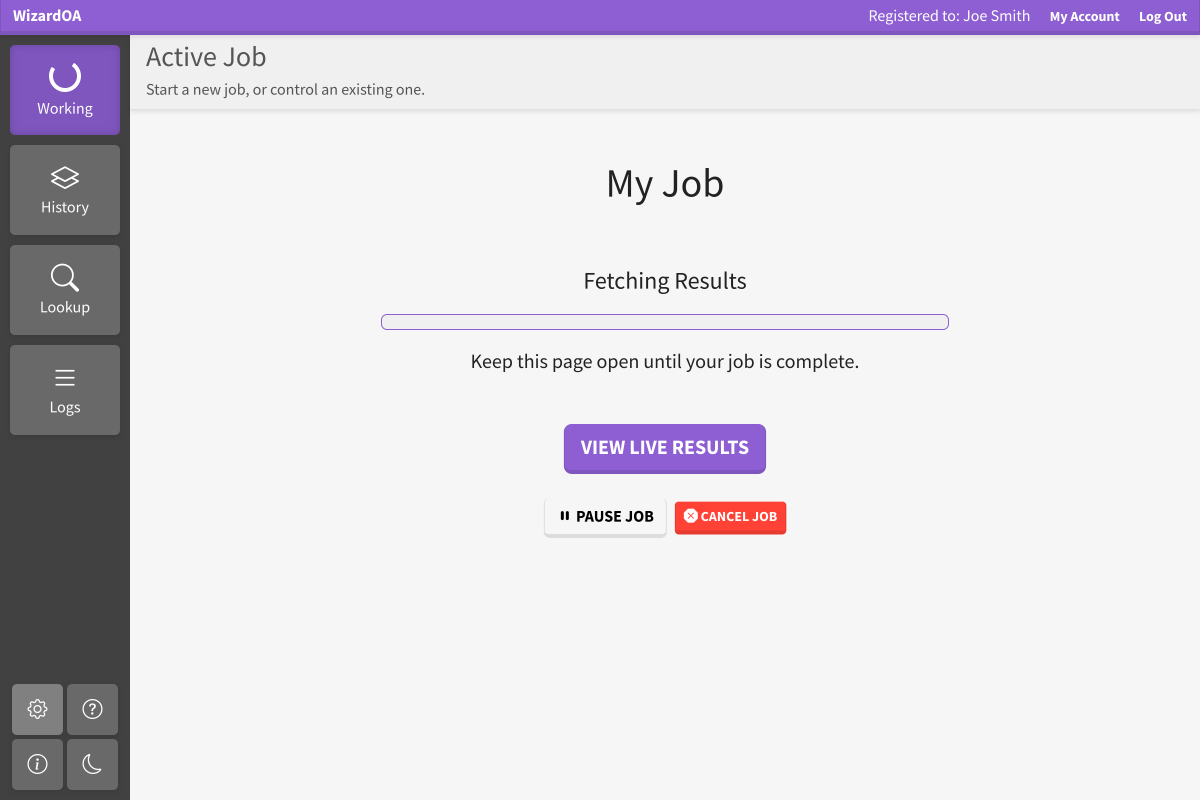
Now you can pause/resume your running job, or cancel it completely.